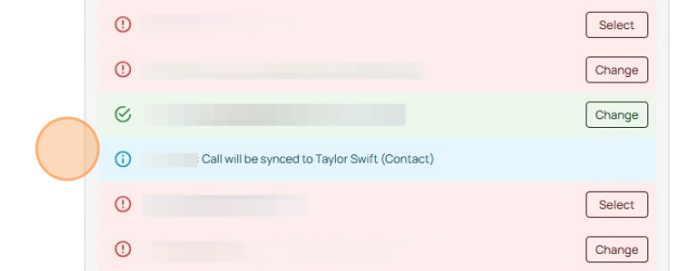
How to check your CRM sync status/Change if its synced to Contact/Candidate
Navigate to https://softphone.devyce.io/conversations
Go to the conversation you are wishing to check, and click on the 'Actions' section or 'not synced' badge to see more details
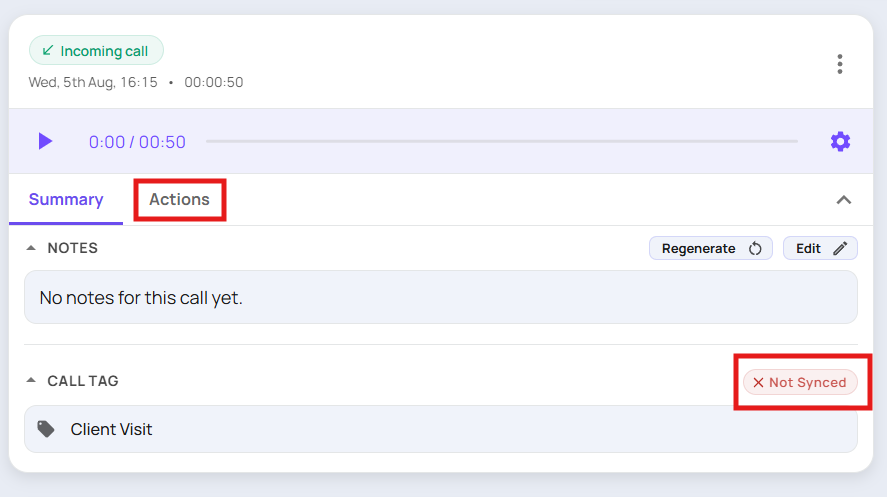
You can see what each sync status means here: https://devyce.support.site/article/crm-sync-status-how-to-resolve-them
This also details what can be done to remedy sync issues, if you still experience issues please reach out to support@devyce.com and we will be able to assist you further
You can change the destination of your sync, for example if you have the same person as a candidate and a contact
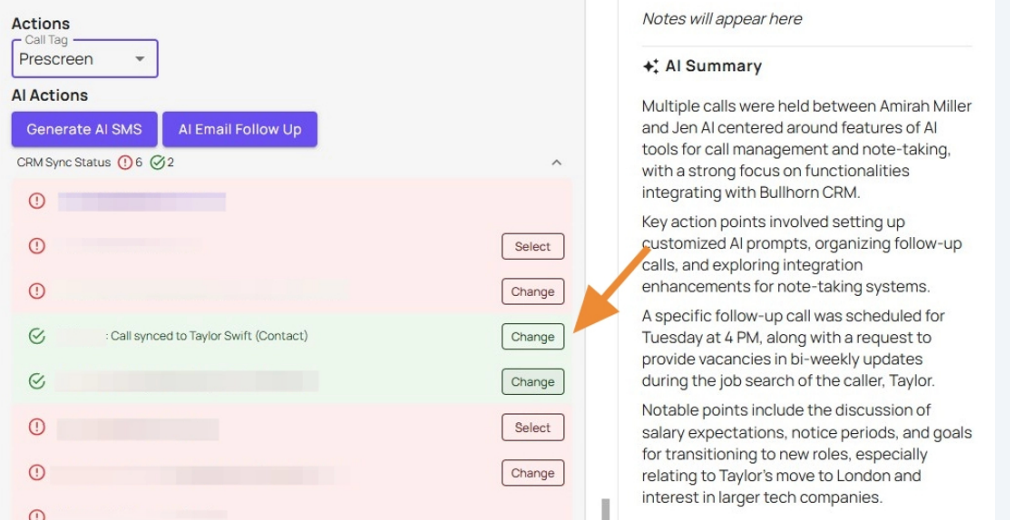
By clicking change, it will then display a drop down menu of all candidates, clients and contacts linked to the number you called
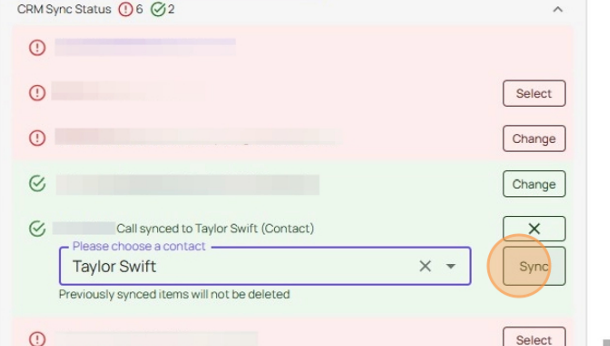
You can then select the account you wish to resync with. Please note that previously synced items will not be deleted
You can then click, sync - to resync to that contact
You will then see the below confirmation