
Updating Chrome Settings
Open your Devyce Softphone in Google Chrome, and click on the below button in the searchbar

This opens the below page, where you need to click on Settings at the bottom
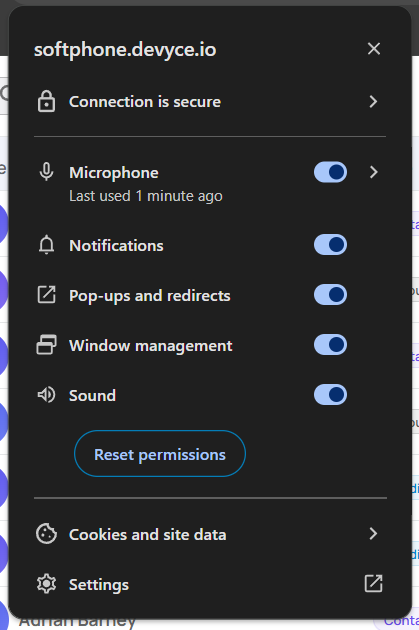
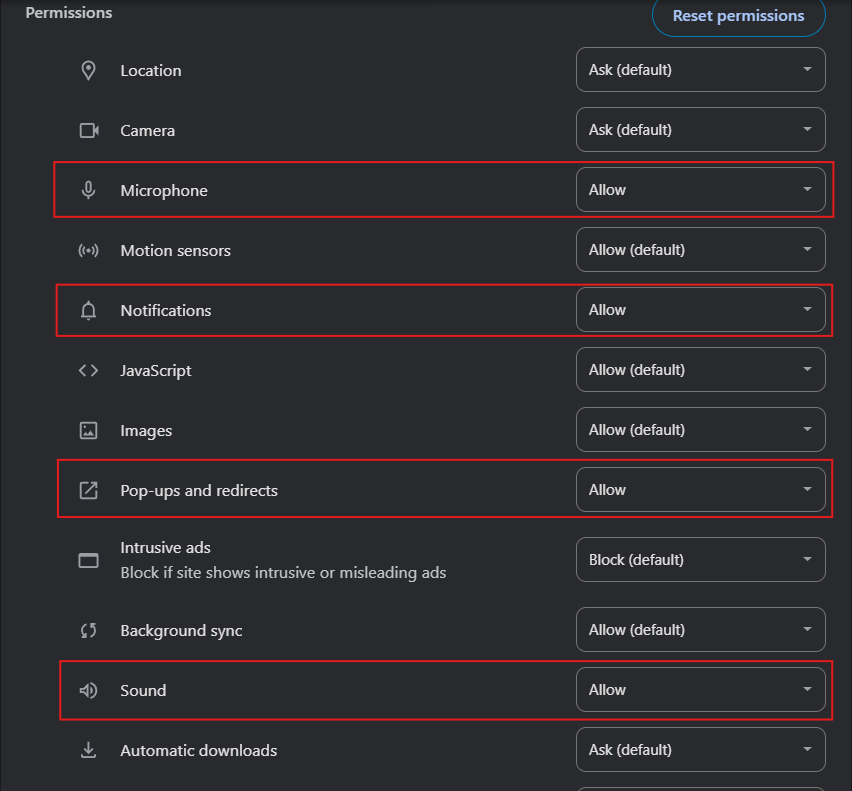
This will open a new tab, where you can ensure the below are all set to Allowed (not default)
Once this is completed, you can close these tabs and go back to your Softphone and a reload button should appear

Click this to reload your Softphone, and apply the updated filters