
How to setup Working Hours
Navigate to your Devyce Softphone and click on the settings cog in the bottom left hand corner of the toolbar
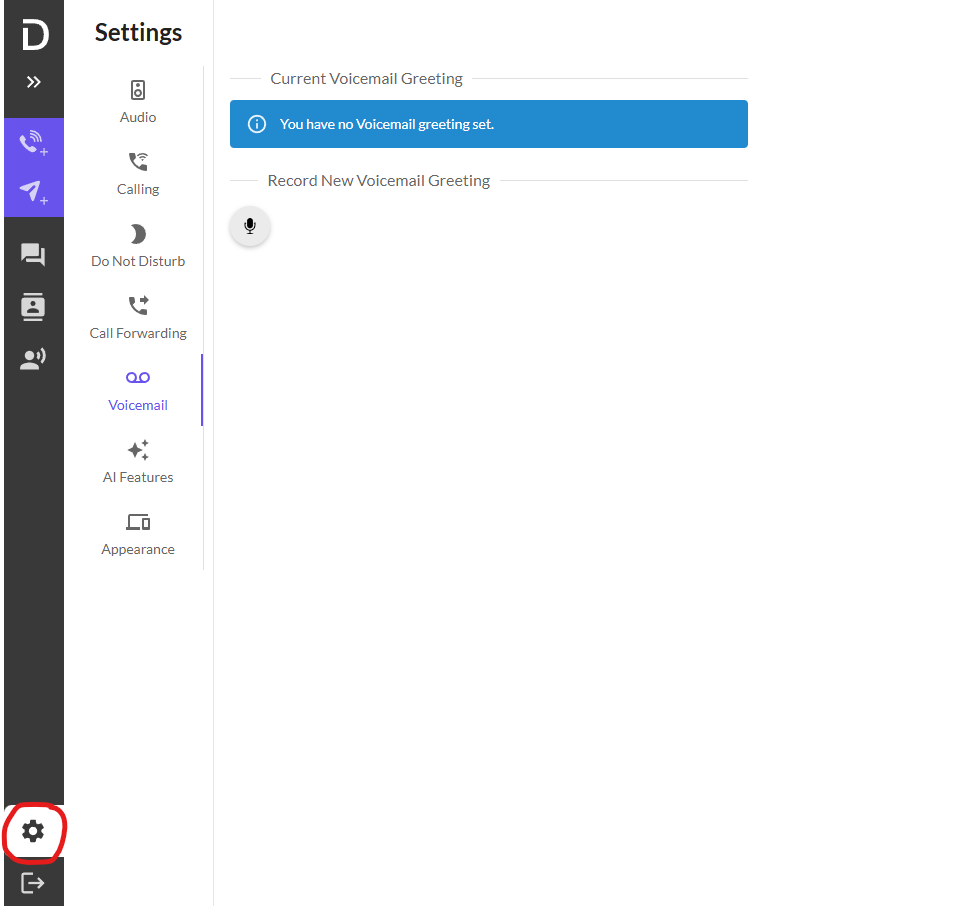
You then click on the Do Not Disturb option, which will open the next section
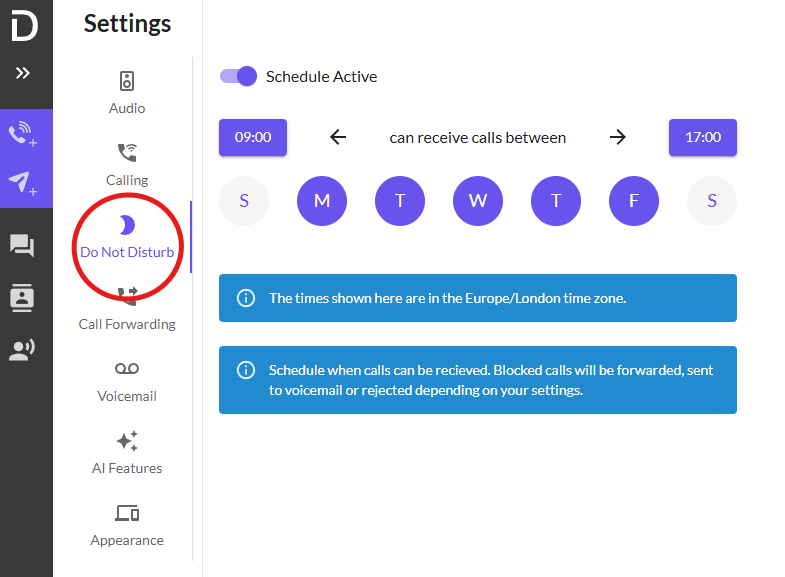
Here you can schedule your active call time, the letters depict the day of the week and highlighting these indicates you are active on these days with the times shown above being the opening hours.
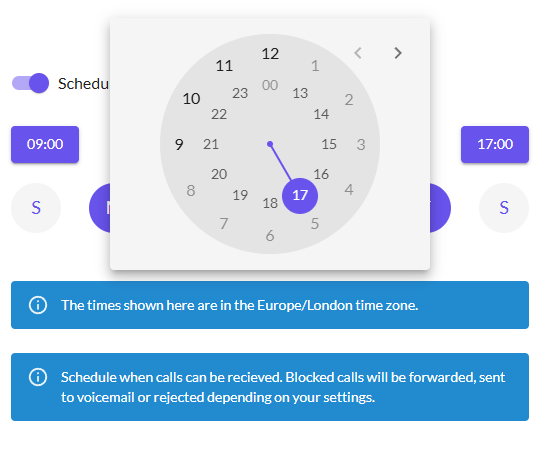
Clicking on the purple timings shown above, will bring up the clock dial where you can edit your working hours.
Please note that these times are in Europe/London time zones - If you are not located in a European/London time zone, please alter this accordingly.