
Creating a Calling Group
Navigate to https://portal.devyce.io/
Scroll down the side panel to 'Calling Groups'
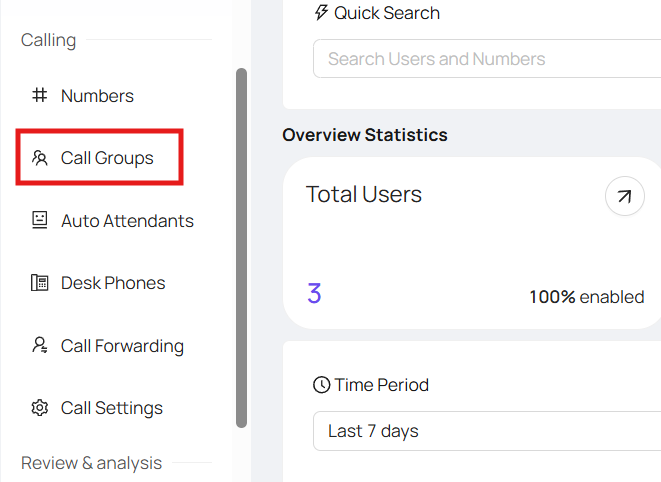
Click 'Add Call Group'

This will then open up your calling group settings
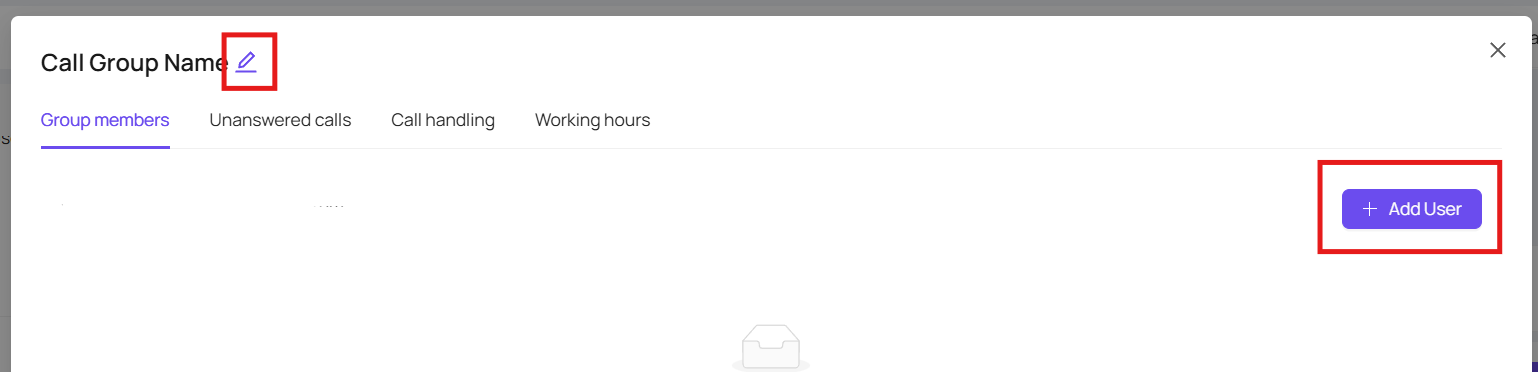
Clicking the pen icon next to 'Calling Group Name' will allow you to name the calling group as you require
You can then 'Add User' for who you would like to be included in this calling group - this will allow these users to use the Calling Group number as an outbound ID, as well as receive calls from this number
The 'Unanswered calls' tab, allows you to forward to another calling group or user if unanswered, or to an external number.
Or if preferred go to a voicemail which can be different for during working hours as well as outside of working hours
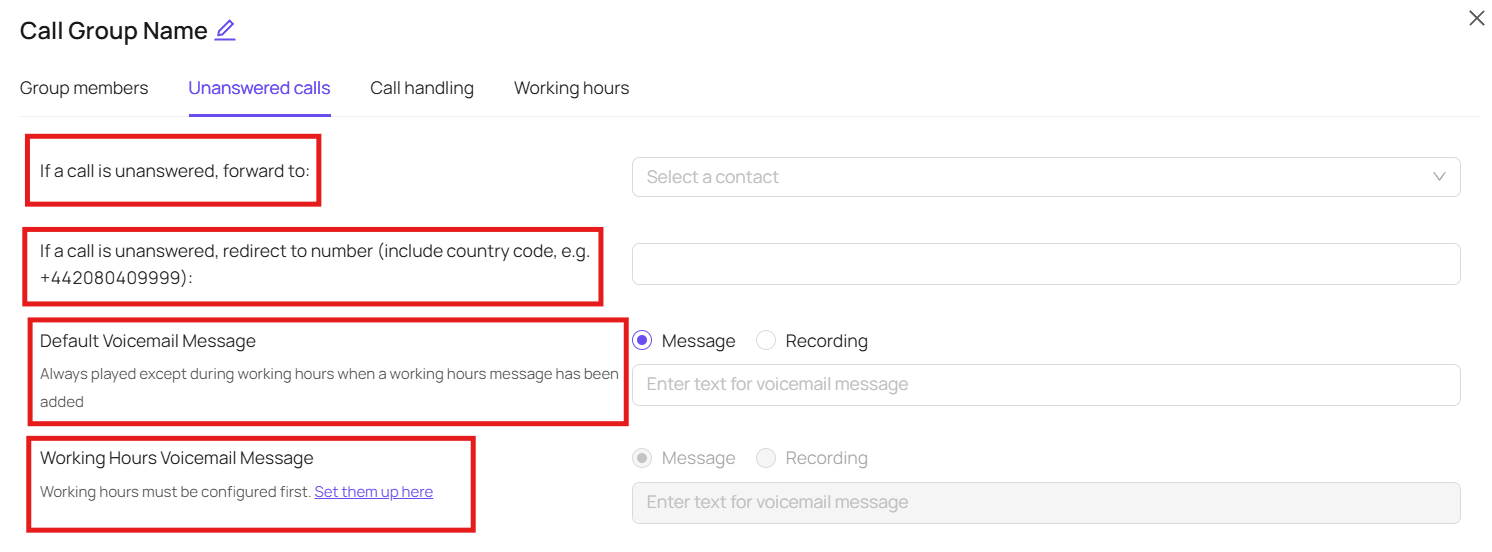
You can also have a personalised voicemail message by using Text to Speech or uploading a recording
Under the tab 'Call Handling' you can edit ring time, and other details according to your current subscription type
And under the 'Working hours' tab you can choose for the calling group to always be active, or have customised working hours
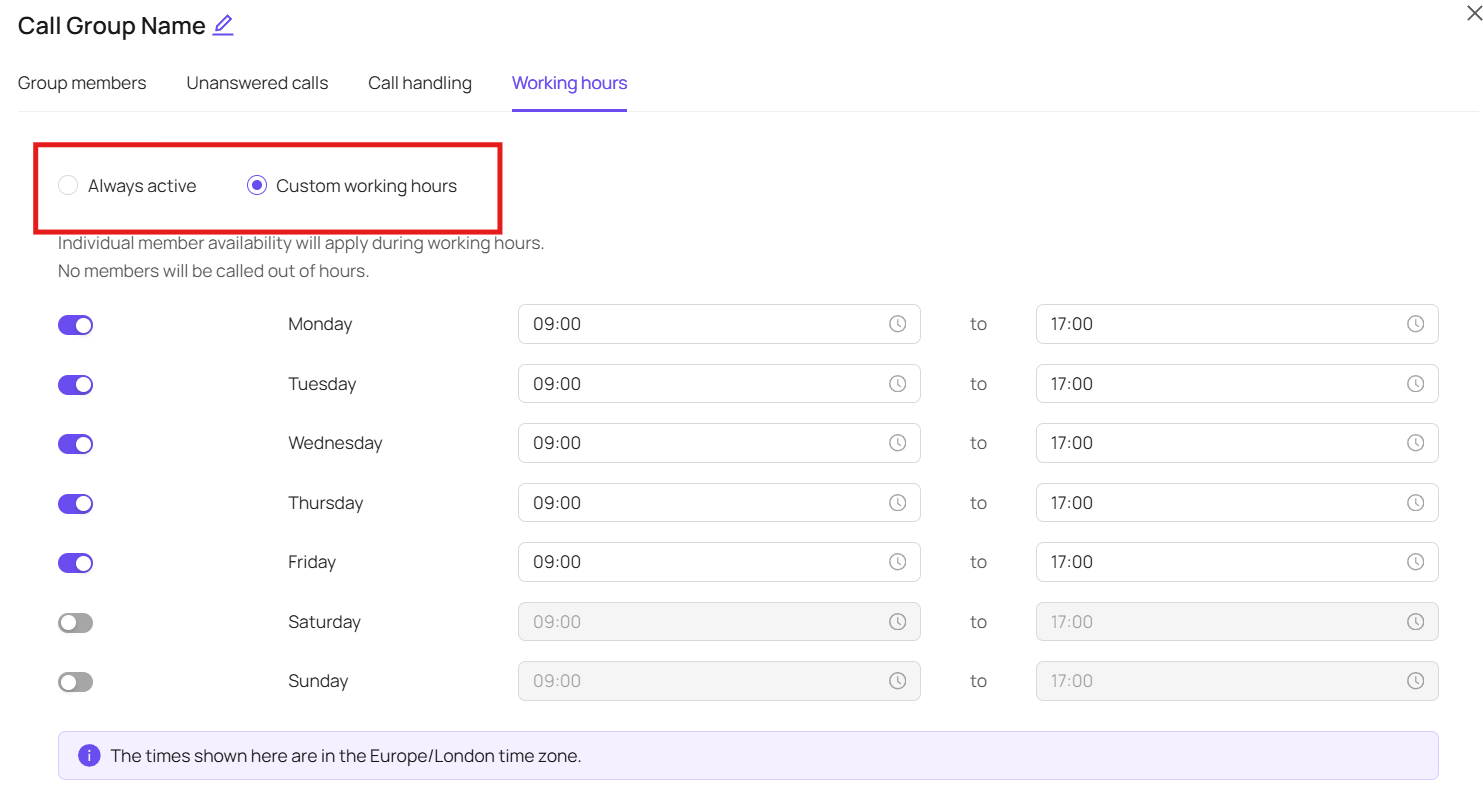
Depending on your subscription you may also have the ability to have calendar working hours, which allows things such as bank holidays to be factored in - if you don't have that option and would like it reach out to support@devyce.co.uk or your account manager to discuss upgrading
Once you are happy with your call group, you can click the create button in the bottom righthand corner of the pop up box
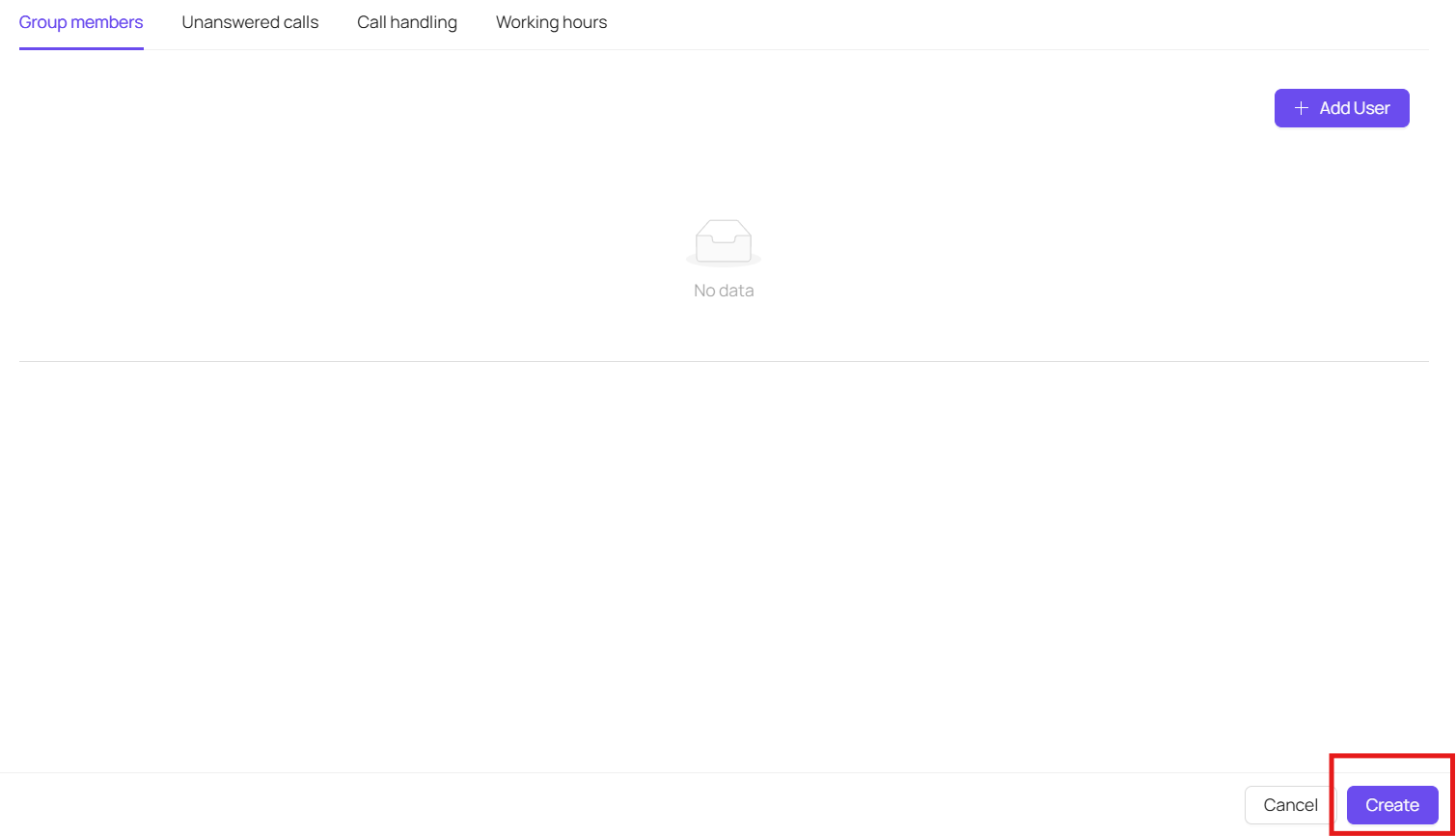
This will save your calling group, ready for a number to be assigned to it
To assign a number, navigate to the numbers tab within the portal
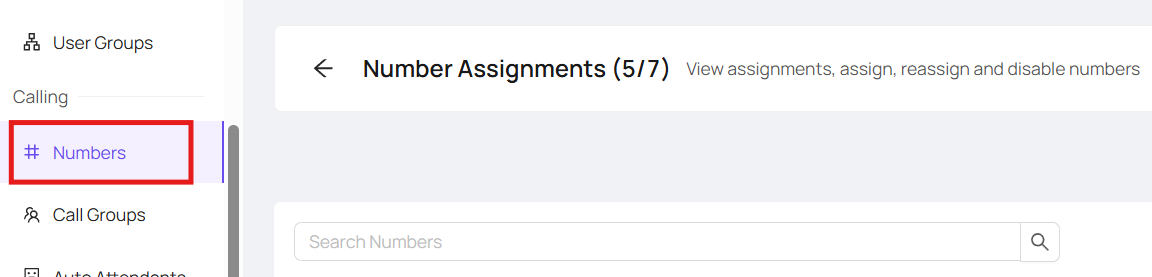
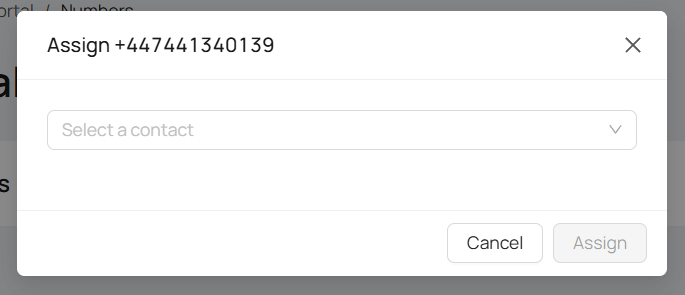
Choose the number you wish to assign, and click the assign button on the right

This will then bring up a pop up with a drop down menu, for you to choose the calling group you just created
If you don't have a spare number to assign, or you don't have a number you want for your calling group reach out to support@devyce.co.uk and we will be able to purchase one for you