
Creating an Auto Attendant
Navigate to https://portal.devyce.io and go to the Auto Attendant Tab
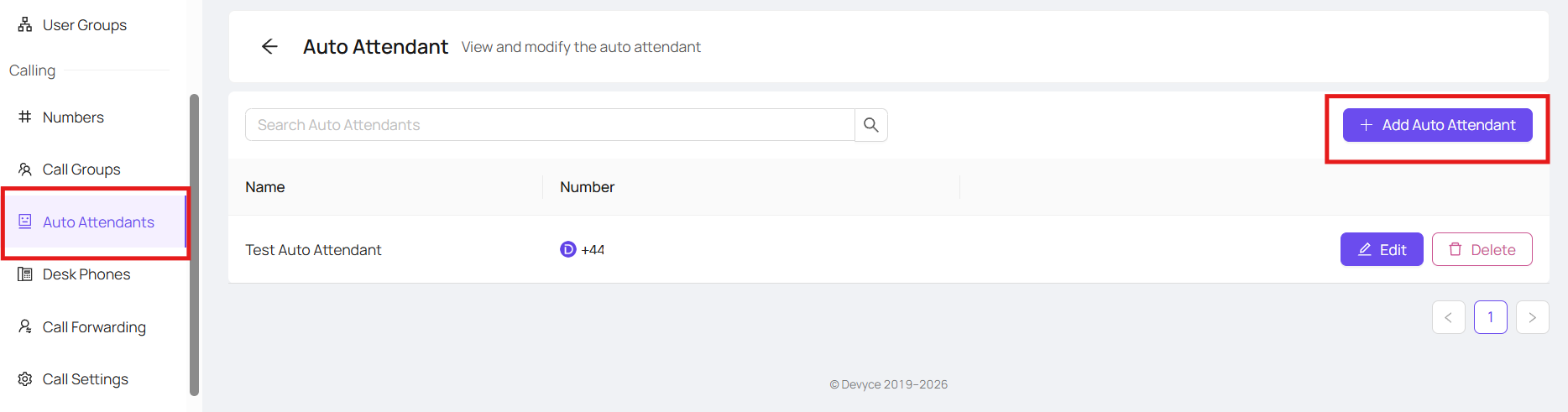
Here you can then click 'Add Auto Attendant'
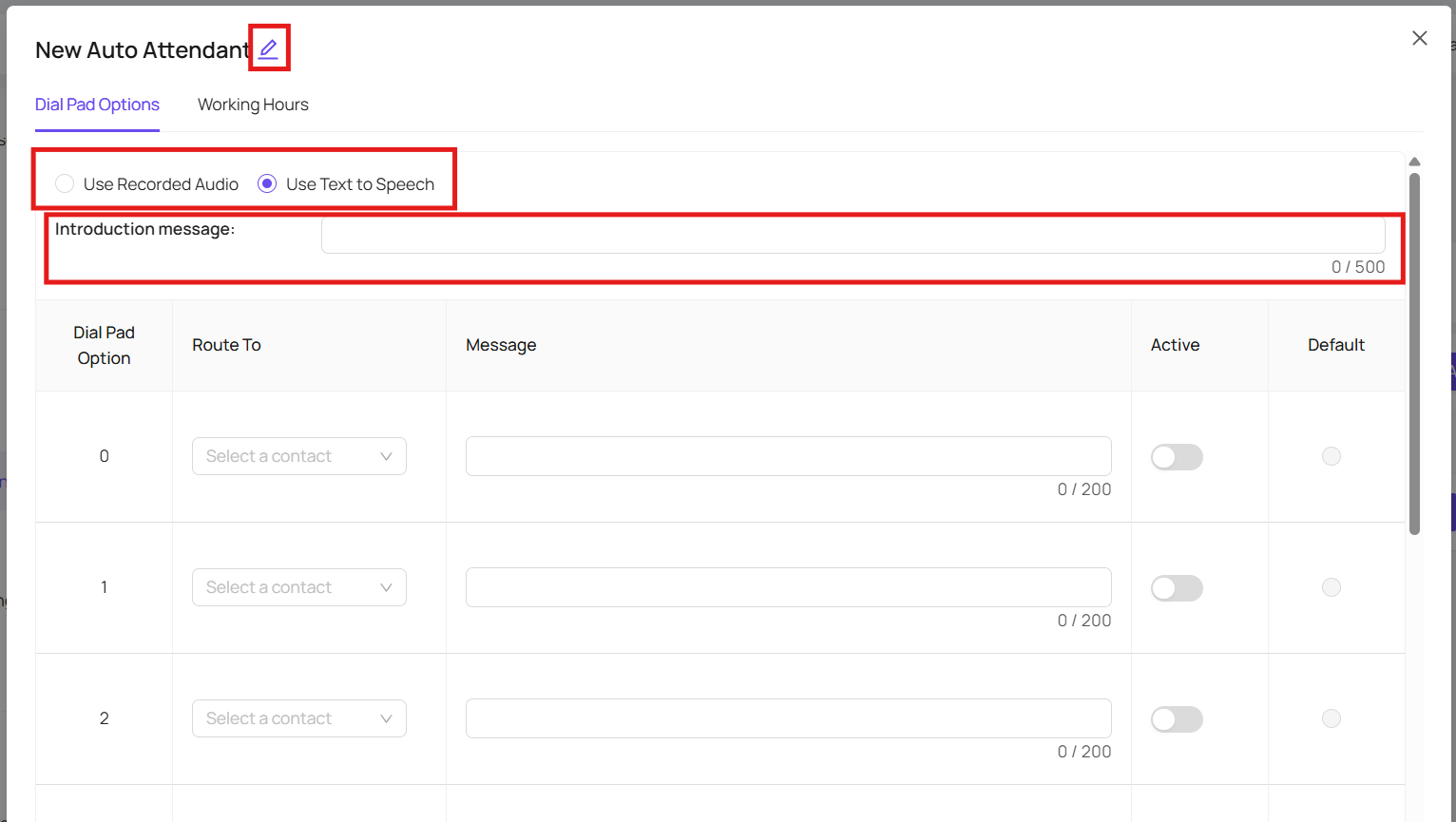
Using the pen icon next to the name, will allow you to rename your Auto Attendant as you require
You can also choose to upload a pre recorded audio Welcome Message, or use our Text to Speech option
Once you have done this you can start inputting your options, selecting a user, or calling group under 'Select a Contact' will auto fill the message, however you can edit this, with what you would prefer as this is what the customer will hear when given the options to choose from
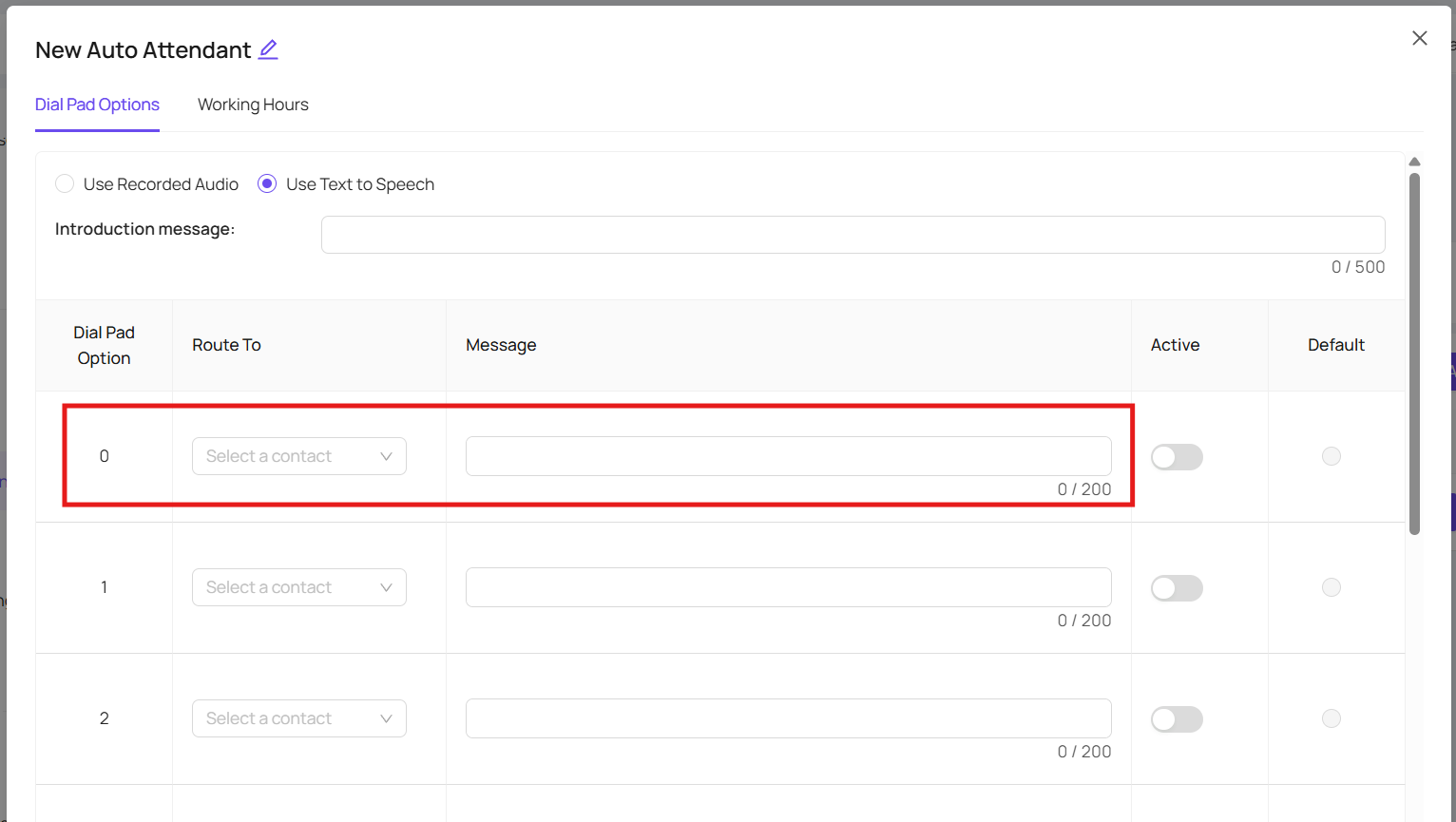
Once you have done this, you have to click 'Active' for this option to be available for incoming calls
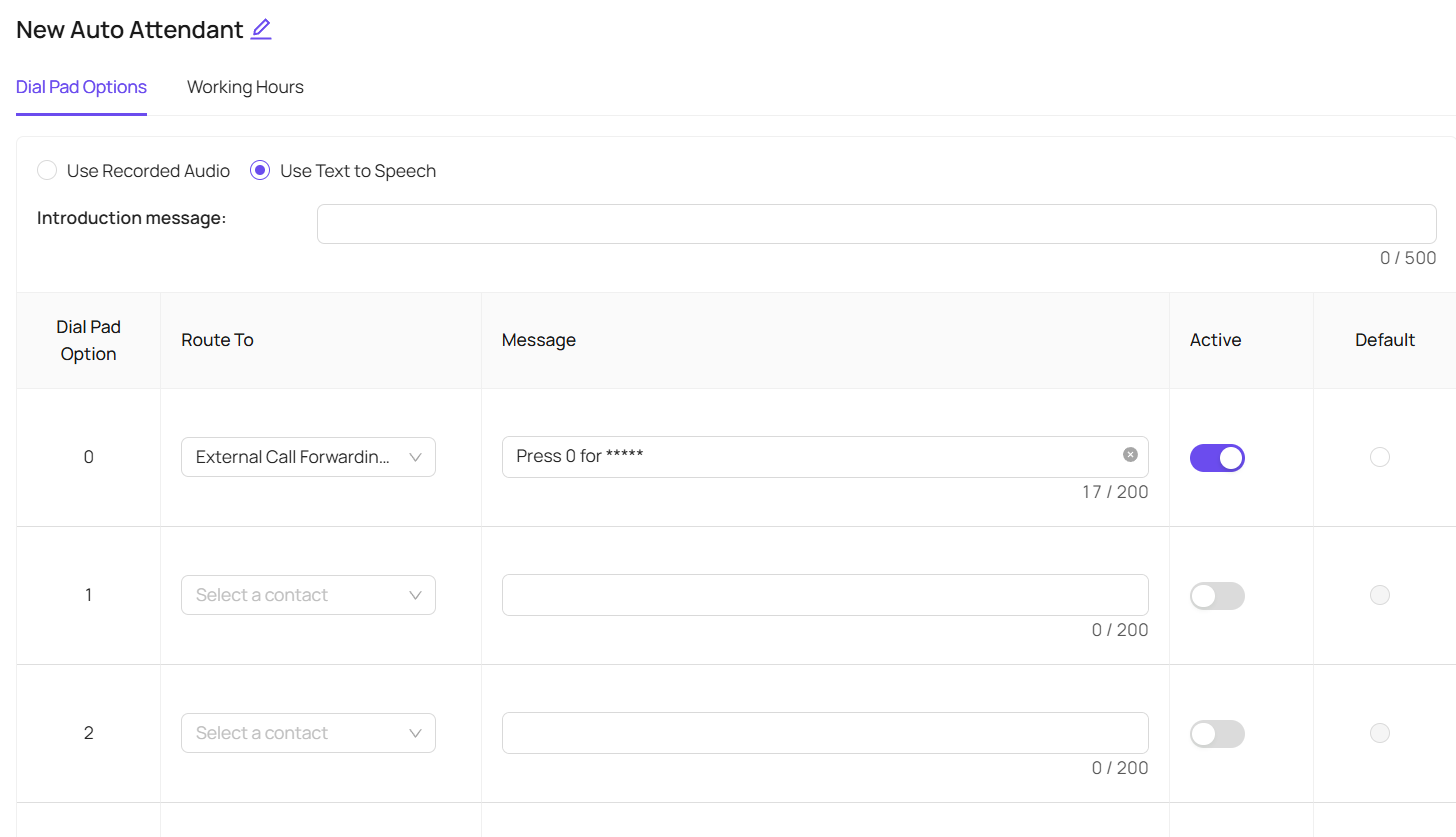
You have up to 10 options to provide your customers, or alternatively if you would like the benefit of a Welcome Message but do not wish to provide options for your customers to choose to get through to a certain team, you can utilise the default button
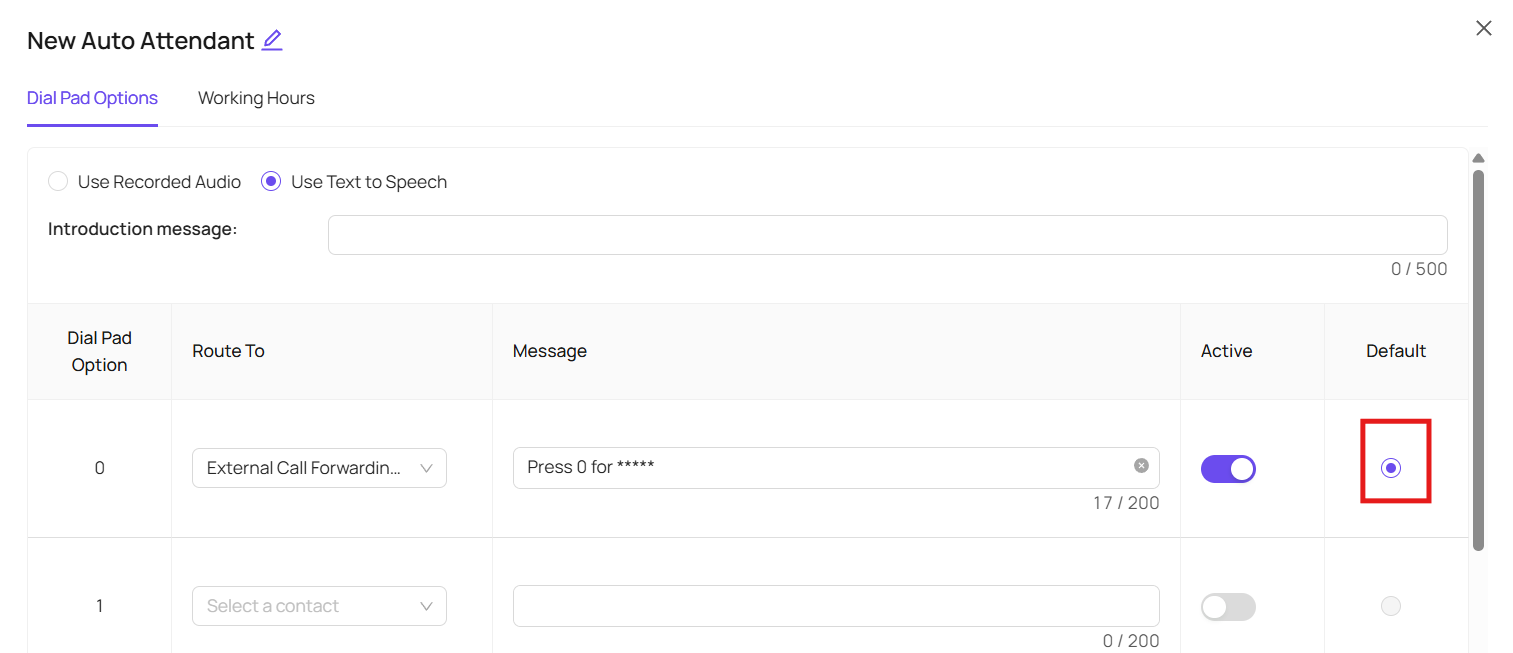
You can only have one default - but this allows your Welcome Message to play, and then the Auto Attendant will automatically forward to that option opposed to providing your callers with a choice and a dial pad option
You then need to assign the Auto Attendant a number, click on the Numbers tab in the lefthand side toolbar https://portal.devyce.io/dashboard/numbers
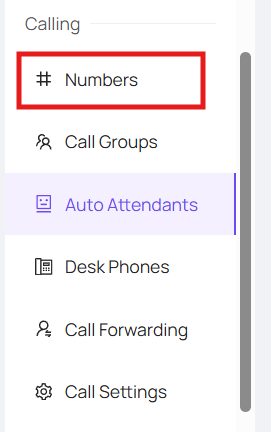
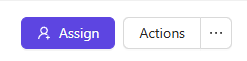
On this page you can see if you have any unassigned numbers, if you have any unassigned that are relevant to your needs you can assign this to them by clicking the assign button
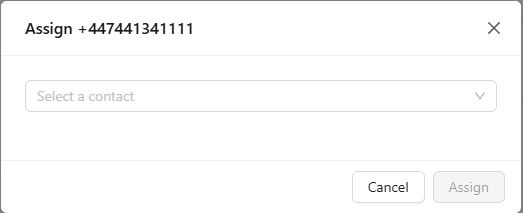
This will then bring up a drop down menu where you can choose who to assign the number to.
If you don't have any unassigned numbers, you can add more to your account by reaching out to support@devyce.co.uk
This number would then be added to the account, and can be assigned to your Auto Attendant