
Remove a user from your organisation
Navigate to https://portal.devyce.io/
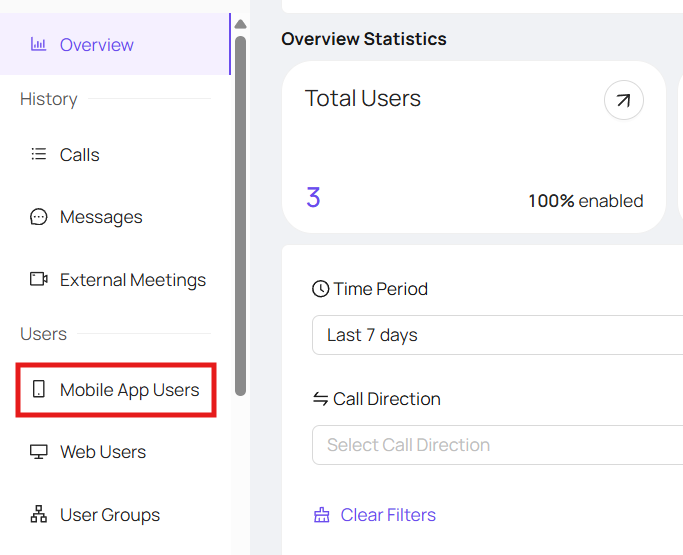
Click onto the 'Mobile App Users' tab
Use the search function or click and scroll through to find the user you are wishing to remove

Once you have found the user you wish to remove, click on the 3 dots on the righthand side of their name, to open the dropdown menu

This will then give you the option to 'Disable' the mobile app user
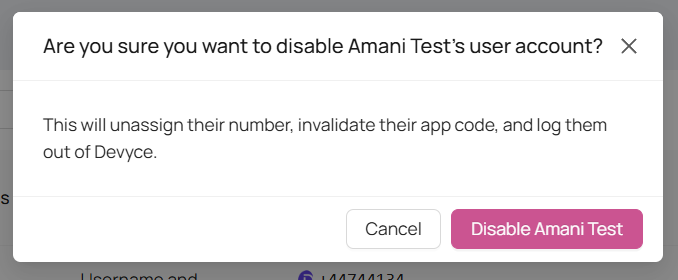
Once you have disabled the user it will then show a bin icon instead

Clicking this will then fully delete the mobile app user
You can then travel to the 'Web Users' page to remove that part of the users account and click 'Edit' next to the users name

You will then be able to scroll down and delete the user
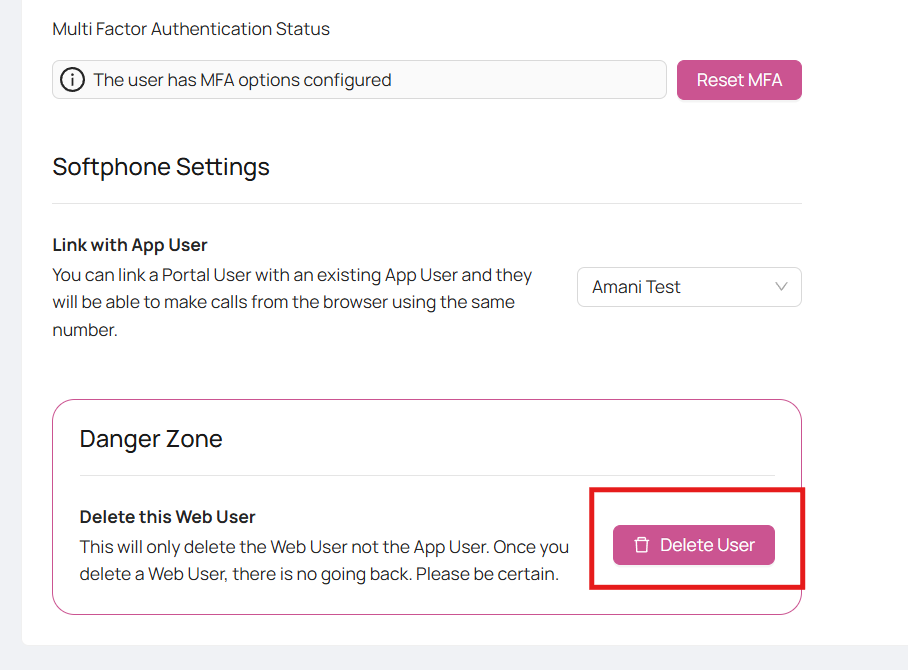
Please note once this is done, the user is fully removed and all their previous data will then show under 'Deleted User'
Once you have completed this step, email support@devyce.co.uk to update your billing as needed