
How to Cold Transfer whilst on Enhanced Calling
In this article group
- How to setup your call forwarding
- How to setup your Chrome Extension - Softphone
- How to open the Softphone
- Setting a default Outbound & SMS number
- How to select call tags on the Softphone
- How to use Enhanced Calling
- How to make an outbound call and assign a call tag
- How to initiate a new call in the Devyce Softphone
- How to expose the Devyce Keypad when on a call
- How to Cold Transfer
Utilising the call transfer button as you would for Warm Transferring, instead of waiting for your colleague to speak with you - you just need to wait until the call has transferred fully and been answered by your colleague.
This can be seen via the loading bar during the call - this show the call is still calling your colleague
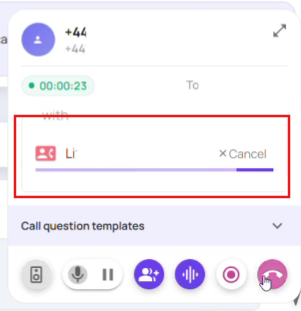
Once the call has been answered, it will show as below, and you can disconnect the call leaving the original caller with your colleague without any further discussion.
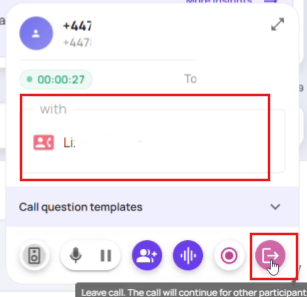
Alternatively, if you do not hang up the call - you will be able to speak with your colleague, conference with the other caller and then leave the call as you usually would when warm transferring.
Please note the 'loading bar' shows the colleague being called, if they do not answer this loading bar will not go, leaving you with the original caller, so you can let them know your colleague is currently unavailable.