
How to select call tags on the Softphone
In this article group
- How to setup your call forwarding
- How to setup your Chrome Extension - Softphone
- How to open the Softphone
- Setting a default Outbound & SMS number
- How to use Enhanced Calling
- How to Cold Transfer whilst on Enhanced Calling
- How to make an outbound call and assign a call tag
- How to initiate a new call in the Devyce Softphone
- How to expose the Devyce Keypad when on a call
- How to Cold Transfer
Navigate to https://softphone.devyce.io/conversations/ and choose the conversation you need to edit.
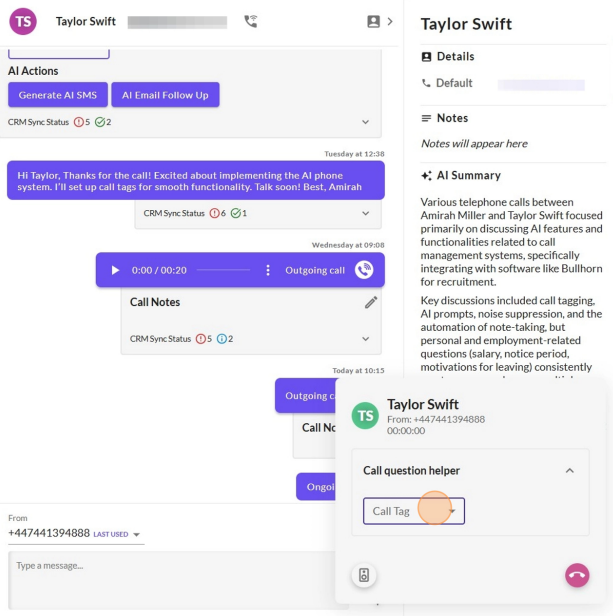
Click on the 'call question helper' to expose the drop down list of call tags
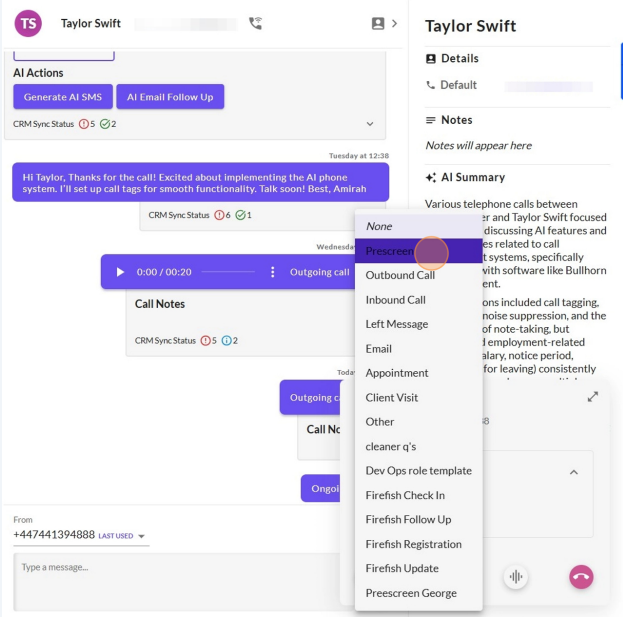
Select the needed call tag from the drop down menu
You can also select the call tag after the call by clicking on the CRM actions, this will expose the drop down list
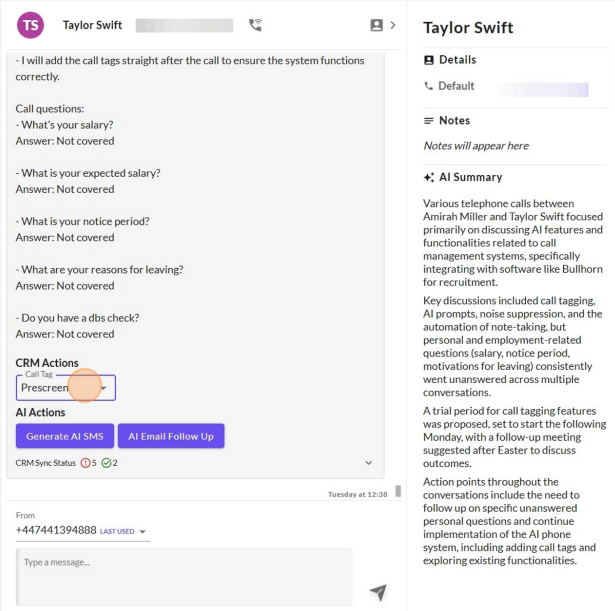
Once you have chosen from the CRM Action dropdown list this will then sync to your CRM
If you experience any issues with this, please contact our support team.