
Enable your Microsoft Edge Settings for Devyce
In this article group
- Updating Chrome and Windows
- Updating Edge and Windows
- Updating Chrome Settings
- Ensuring Notifications are turned on for your Laptop
- Prevent your laptop from 'going to sleep' whilst using Devyce
- Set up your notifications on GoogleChrome
- Check what Devyce Version you are using for your Softphone
- Ensure you are on the latest version of GoogleChrome
- Ensure your Windows is up to date
- Chrome Extension Black List for Devyce
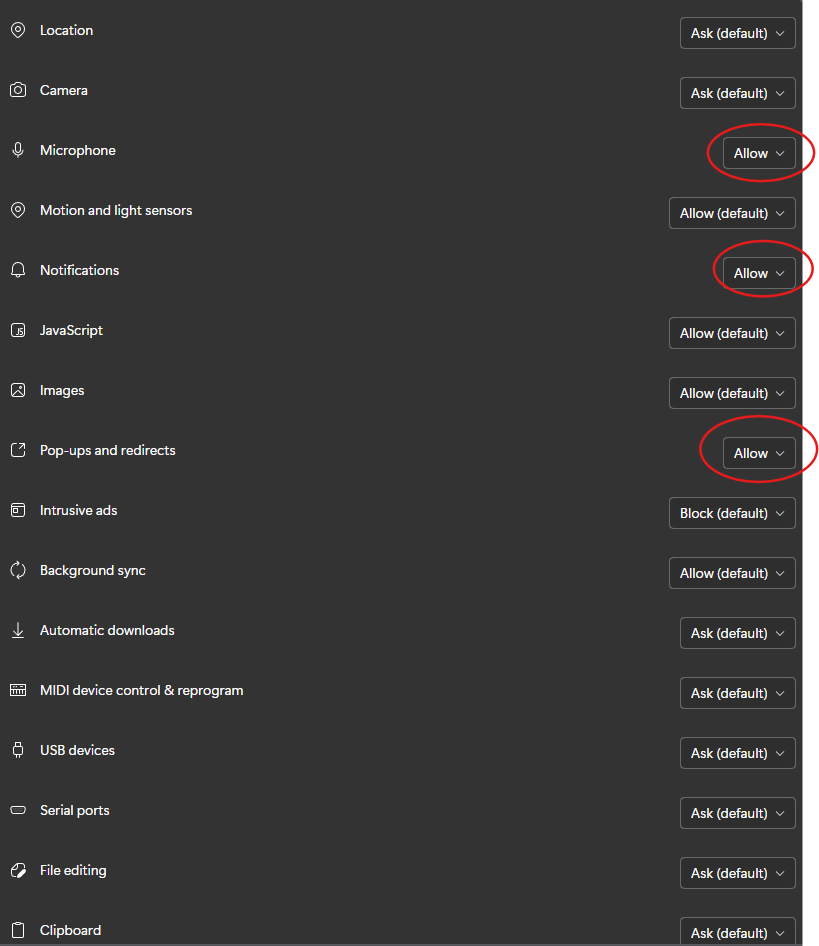
Please follow the steps below to ensure that microphone, sound, and notification permissions are enabled in Microsoft Edge.
Open Microsoft Edge.
Click the three dots (⋯) in the top-right corner of the browser > Select Settings
Select - Privacy, search and Services
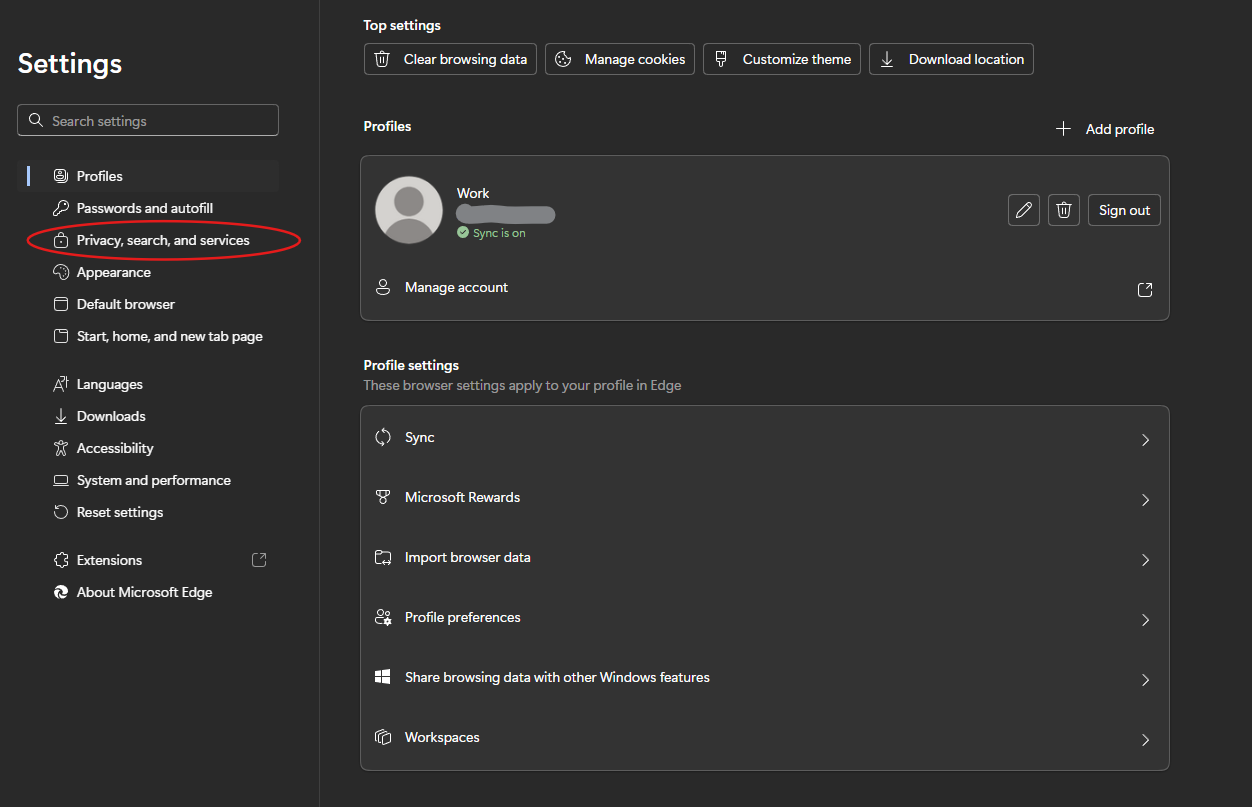
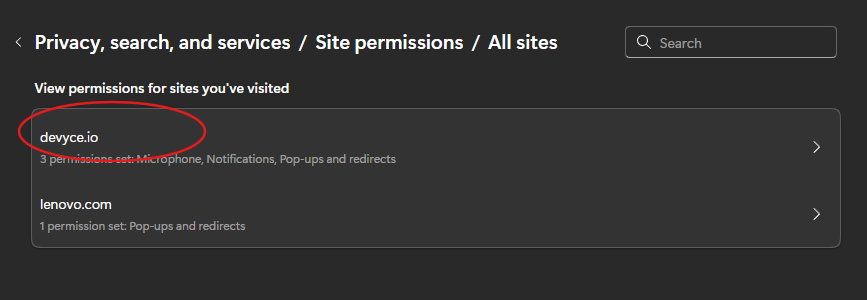
Then click > Site Permissions > All Sites > And Devyce.io should be listed
You should then get a selection of site settings, please ensure the below are set to 'Allow'
Once this is updated, please navigate back to your Softphone, and ensure you click the refresh button at the top of the page

This will then apply the changes you have made to your Softphone