
Set up your notifications on GoogleChrome
In this article group
- Updating Chrome and Windows
- Updating Edge and Windows
- Updating Chrome Settings
- Ensuring Notifications are turned on for your Laptop
- Prevent your laptop from 'going to sleep' whilst using Devyce
- Check what Devyce Version you are using for your Softphone
- Ensure you are on the latest version of GoogleChrome
- Enable your Microsoft Edge Settings for Devyce
- Ensure your Windows is up to date
- Chrome Extension Black List for Devyce
Devyce recommends best practice is to use Google Chrome with Devyce.
Sometimes Google can prevent notifications for your Calls, this can be turned off via the below steps:
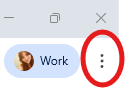
Please navigate to the below button, and then click on the settings button:
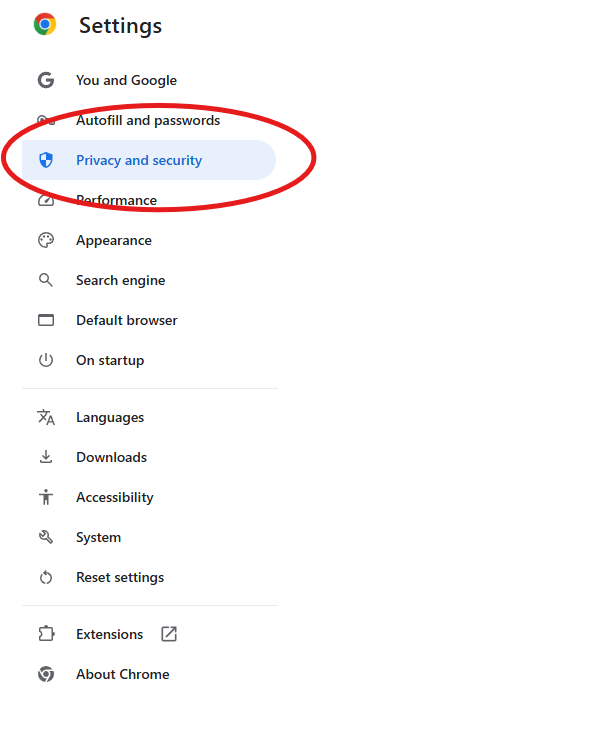
Once in settings you can click on the privacy and security option:
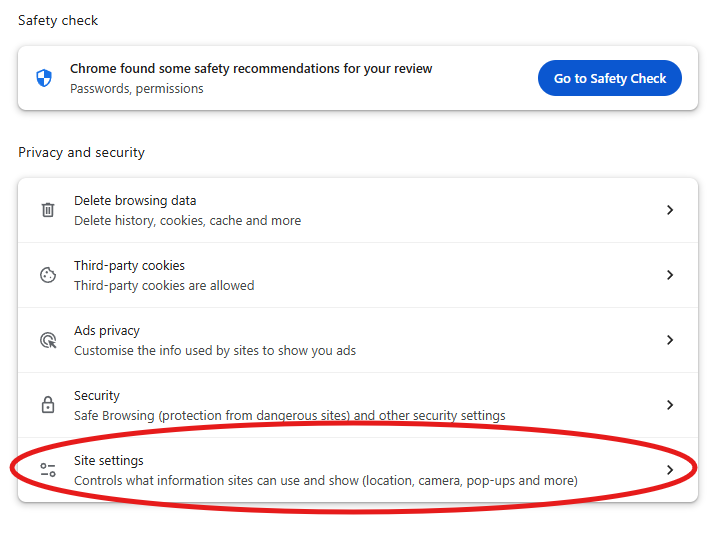
You can then click on the below site settings option
Once within this section, you can scroll to the permission section:
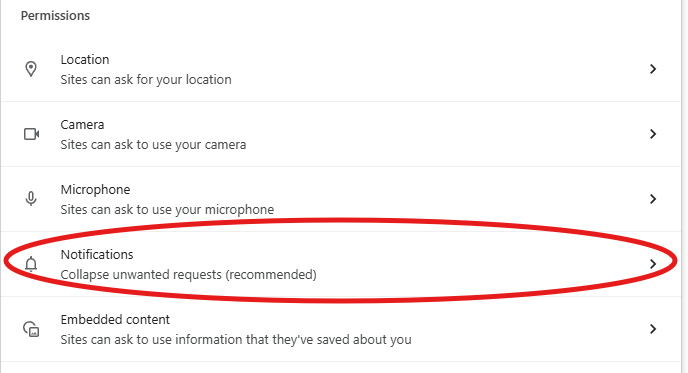
This will open additional information, and a section named 'Allowed to send notifications'
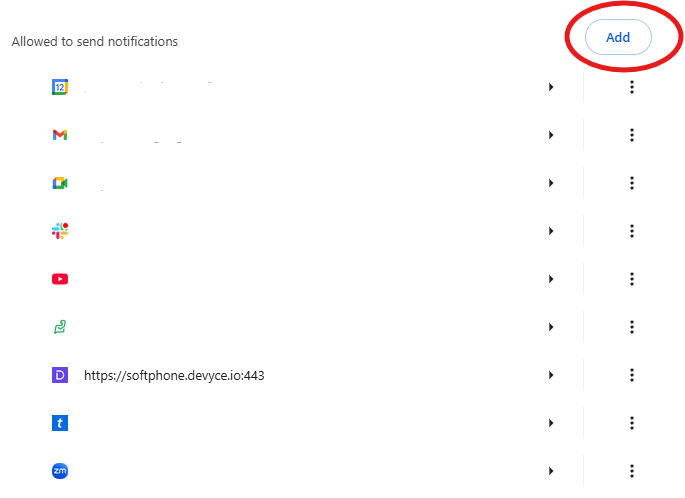
Here you can click the above 'Add' button, and add in the softphone, using the Softphone URL - https://softphone.devyce.io
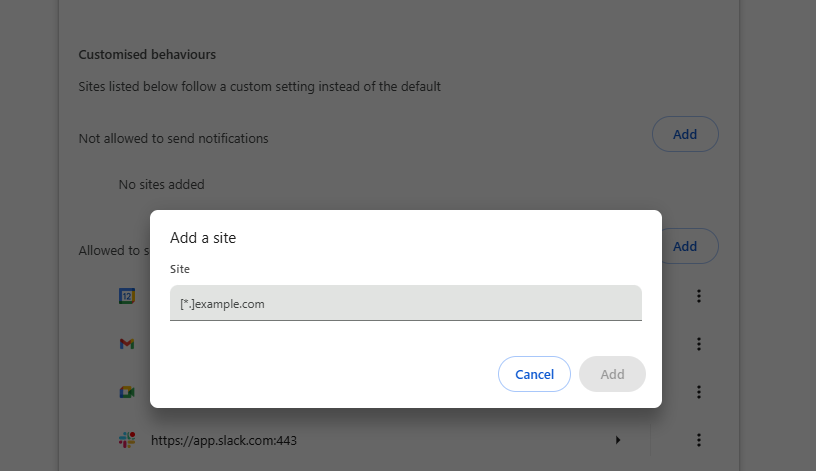
This should then allow notifications to show on Google Chrome for incoming calls.