
Ensure your Windows is up to date
In this article group
- Updating Chrome and Windows
- Updating Edge and Windows
- Updating Chrome Settings
- Ensuring Notifications are turned on for your Laptop
- Prevent your laptop from 'going to sleep' whilst using Devyce
- Set up your notifications on GoogleChrome
- Check what Devyce Version you are using for your Softphone
- Ensure you are on the latest version of GoogleChrome
- Enable your Microsoft Edge Settings for Devyce
- Chrome Extension Black List for Devyce
Windows will often update automatically, however if it hasn't this can cause issues for your softphone.
To update this please head to settings>select check for updates, this is important to click “Check for updates”, as updates will not always appear automatically
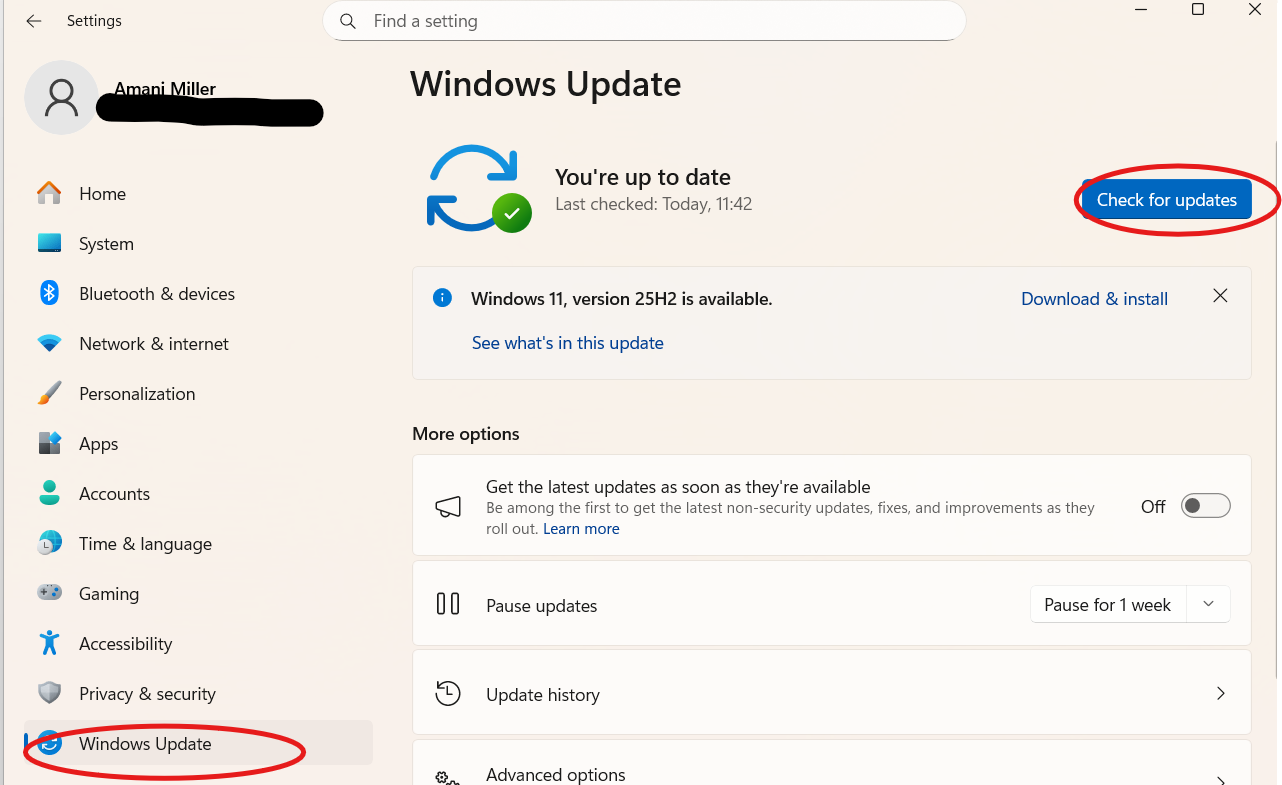
Once you have done this, it will load before and finally complete and update for you