How to add and remove the Devyce Chrome Extension
In this article group
- How to setup Working Hours
- How to Flag a Call Issue/Report an Issue
- Setting customer ring time for Direct Dials
- How to set up user specific call questions
- How to view Call Transcriptions with the Devyce Portal
- How to Download Call Recordings
- How to create a Custom Voicemail
- How to edit your AI summaries within Devyce
- How to override the call modal, allowing you to select outbound call ID's on every call
- How to remove the Devyce PWA (Desktop app)
- How to pin the Devyce Softphone
- How to Regenerate your AI Summaries
- How to install the PWA, Devyce Desktop App
You can download the chrome extension from https://chromewebstore.google.com/detail/devyce-softphone-extensio/inpjhnjfkjaibkkpcdhibhiccnndljnf?hl=en
Click on the puzzle piece icon to view all the chrome extensions
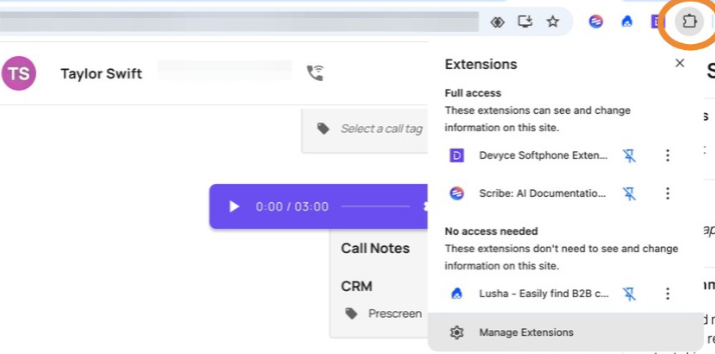
Ensure the chrome extension is pinned to enable the click to dial feature
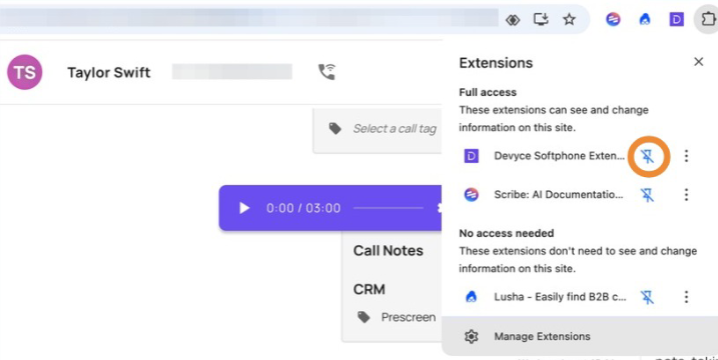
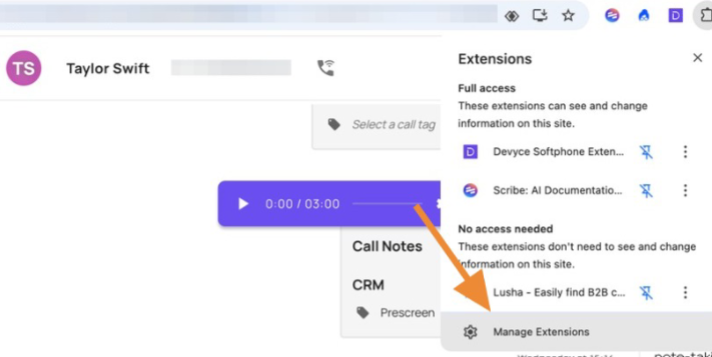
Please ensure that Devyce is the only voice/VoiP extension pinned. To remove any other voice/VoiP extension click "manage extension"
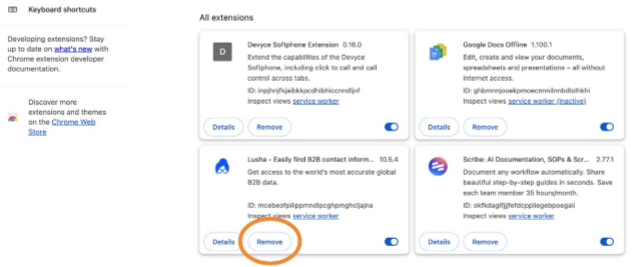
And then click "Remove"