
How to pin the Devyce Softphone
In this article group
- How to setup Working Hours
- How to Flag a Call Issue/Report an Issue
- Setting customer ring time for Direct Dials
- How to set up user specific call questions
- How to view Call Transcriptions with the Devyce Portal
- How to Download Call Recordings
- How to create a Custom Voicemail
- How to edit your AI summaries within Devyce
- How to override the call modal, allowing you to select outbound call ID's on every call
- How to remove the Devyce PWA (Desktop app)
- How to Regenerate your AI Summaries
- How to add and remove the Devyce Chrome Extension
- How to install the PWA, Devyce Desktop App
The Devyce Softphone is accessible via your browser, so if you forget to open it you could miss calls - however you can pin your softphone so that it shrinks but remains visible even if you open multiple other tabs.
When you pin a tab:
The tab shrinks to just the websites icon, saving space
it becomes locked in place so you can't close it accidentally
It opens automatically the next time you open Chrome (if you have continue where you left off enabled)
To do this, open your softphone https://softphone.devyce.io/contacts and right click on the tab at the top of the page, this will then open additional information for you to follow > click Pin
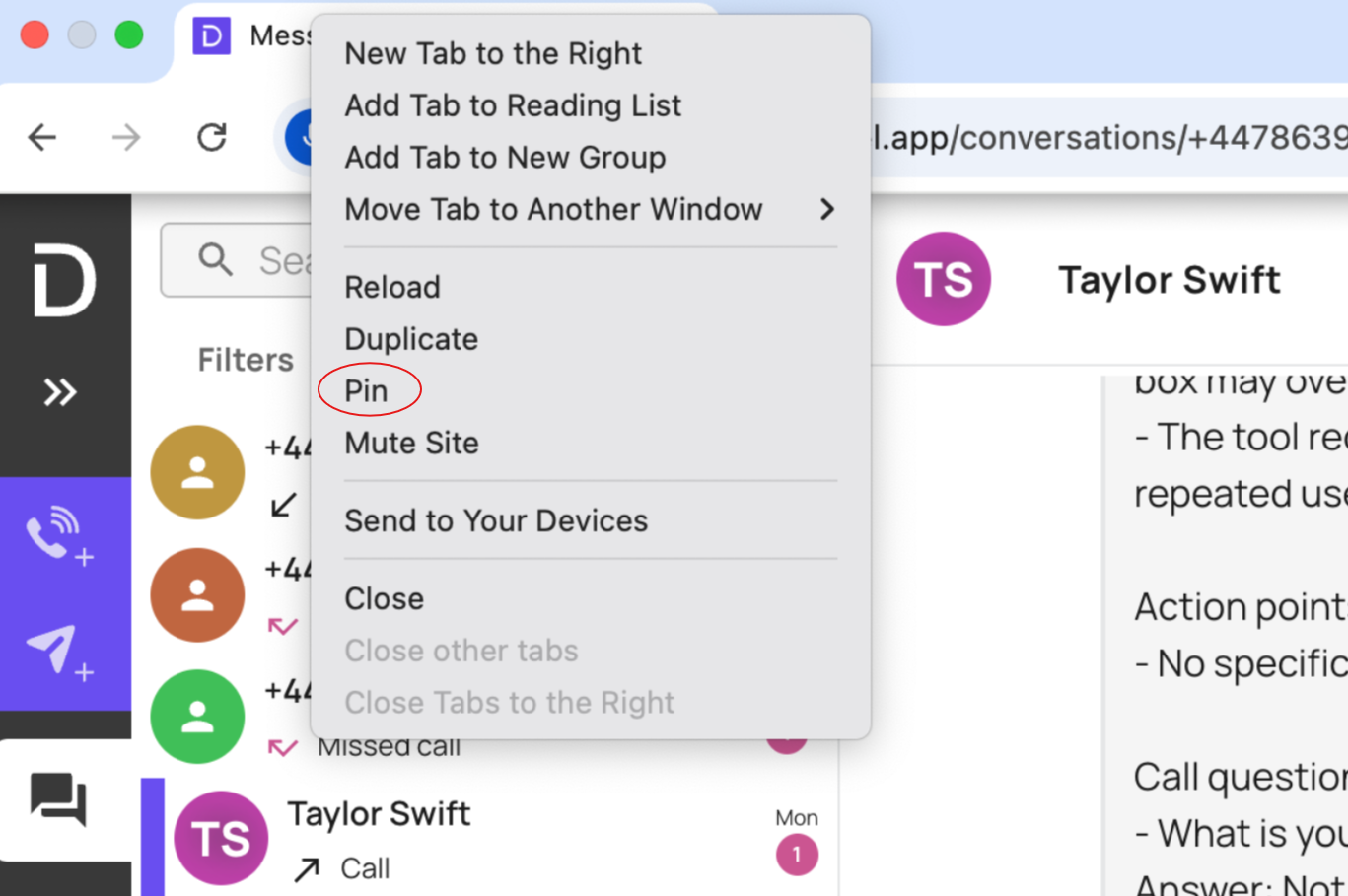
To undo this, you just need to right click on the tab again and click 'Unpin'