
How to Download Call Recordings
In this article group
- How to setup Working Hours
- How to Flag a Call Issue/Report an Issue
- Setting customer ring time for Direct Dials
- How to set up user specific call questions
- How to view Call Transcriptions with the Devyce Portal
- How to create a Custom Voicemail
- How to edit your AI summaries within Devyce
- How to override the call modal, allowing you to select outbound call ID's on every call
- How to remove the Devyce PWA (Desktop app)
- How to pin the Devyce Softphone
- How to Regenerate your AI Summaries
- How to add and remove the Devyce Chrome Extension
- How to install the PWA, Devyce Desktop App
Go to your Softphone https://softphone.devyce.io/conversations/
Navigate to the call within your call history you are wanting to download the recording for.
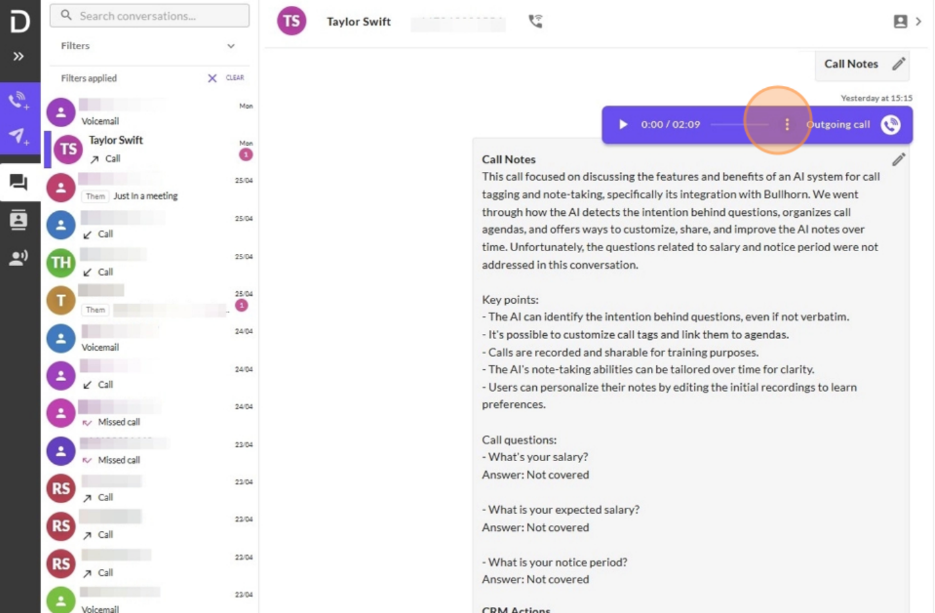
Once you have found the call you wish to download, click on the three dot icon.
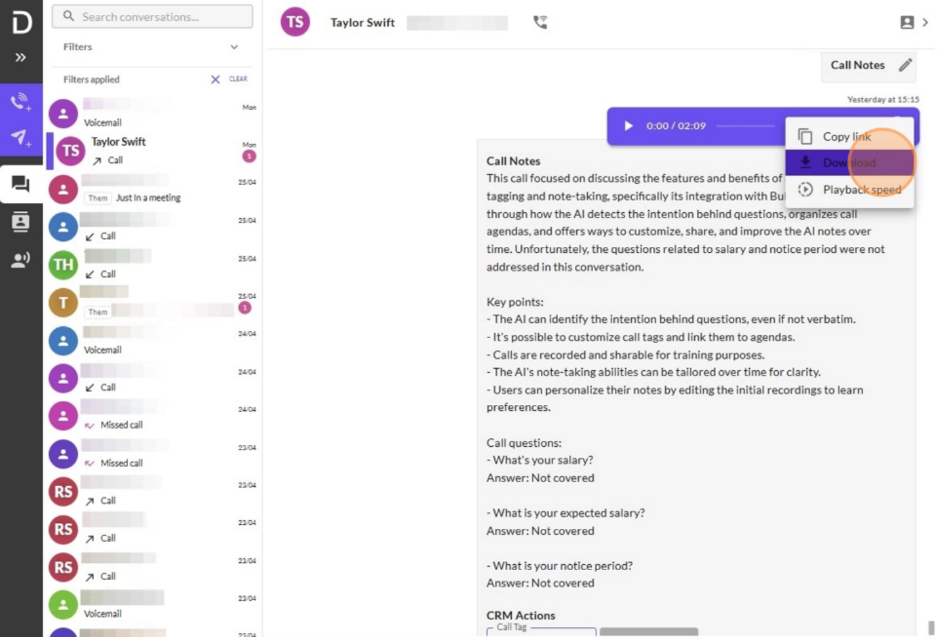
Click download and the recording will open in another tab.
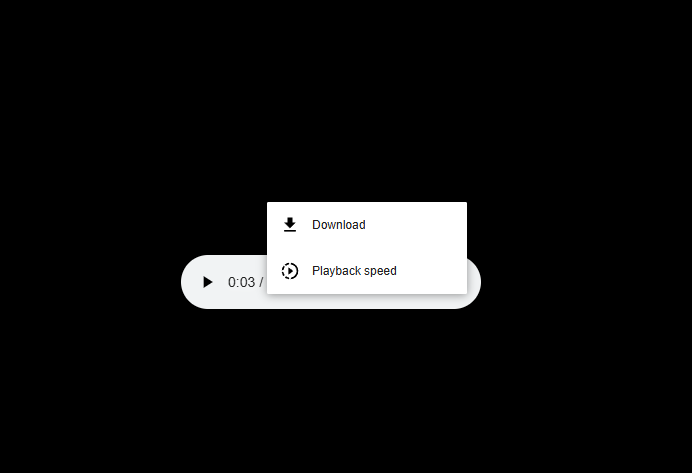
Here you can then choose to listen back to the recording within this tab, or click to download using the three dot icon.
This will then show in your download history within your browser, as well as within your downloads on your computer.
This can then be played through your media player, and saved as a WAV file.