How to call transcriptions within the Softphone
In this article group
- How to setup Working Hours
- How to Flag a Call Issue/Report an Issue
- Setting customer ring time for Direct Dials
- How to set up user specific call questions
- How to Download Call Recordings
- How to create a Custom Voicemail
- How to edit your AI summaries within Devyce
- How to override the call modal, allowing you to select outbound call ID's on every call
- How to remove the Devyce PWA (Desktop app)
- How to pin the Devyce Softphone
- How to Regenerate your AI Summaries
- How to add and remove the Devyce Chrome Extension
- How to install the PWA, Devyce Desktop App
Navigate to https://softphone.devyce.io/ and go to your Conversations
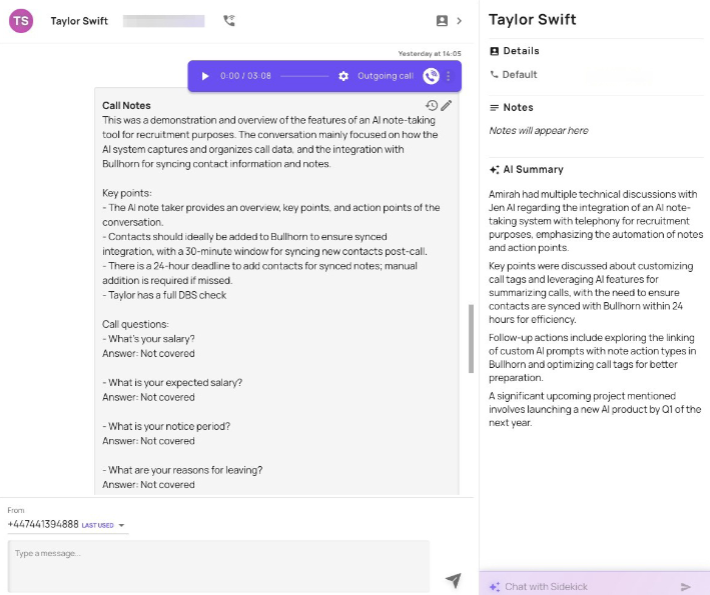
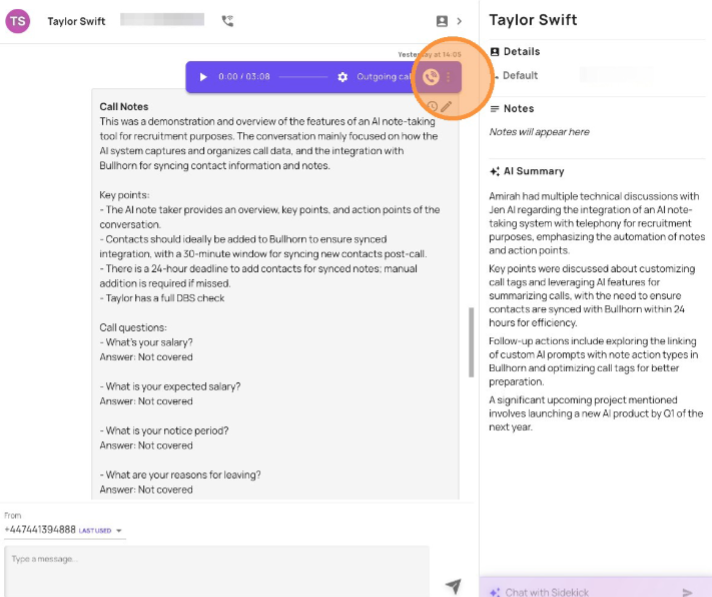
Click the "three dots" to expose the call option drop down menu
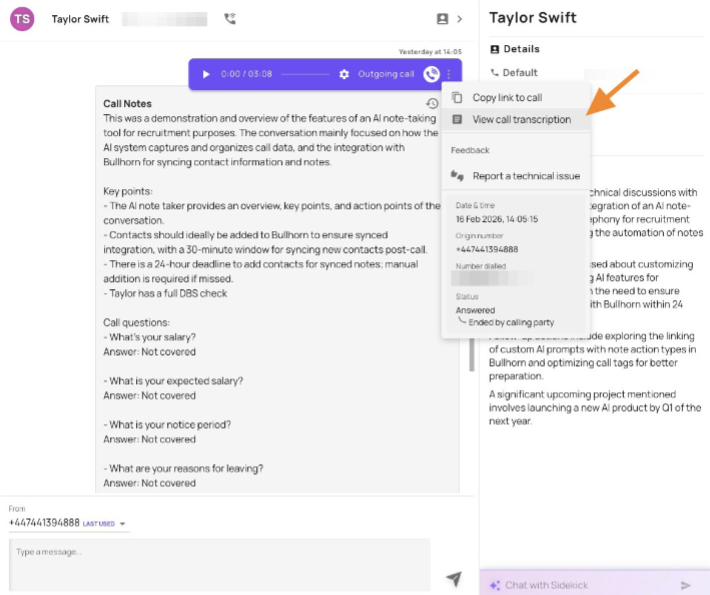
Click to "view call transcriptions"
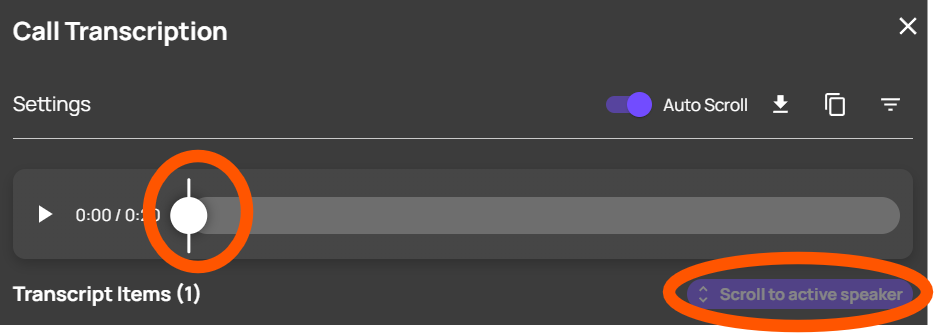
You can download the transcription, by clicking the below button
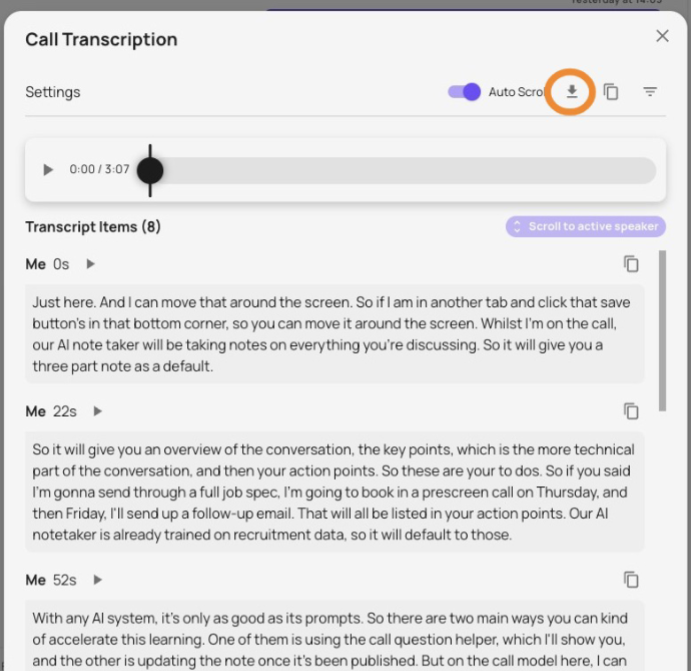
As well as copy the transcription

You can also replay the sections of the transcript and "jump to the point" within the recording, set auto scroll as the recording plays